
Configuration
Vox offers extensive configuration options to customize your transcription experience.
General Settings
Access general settings from Settings → General:
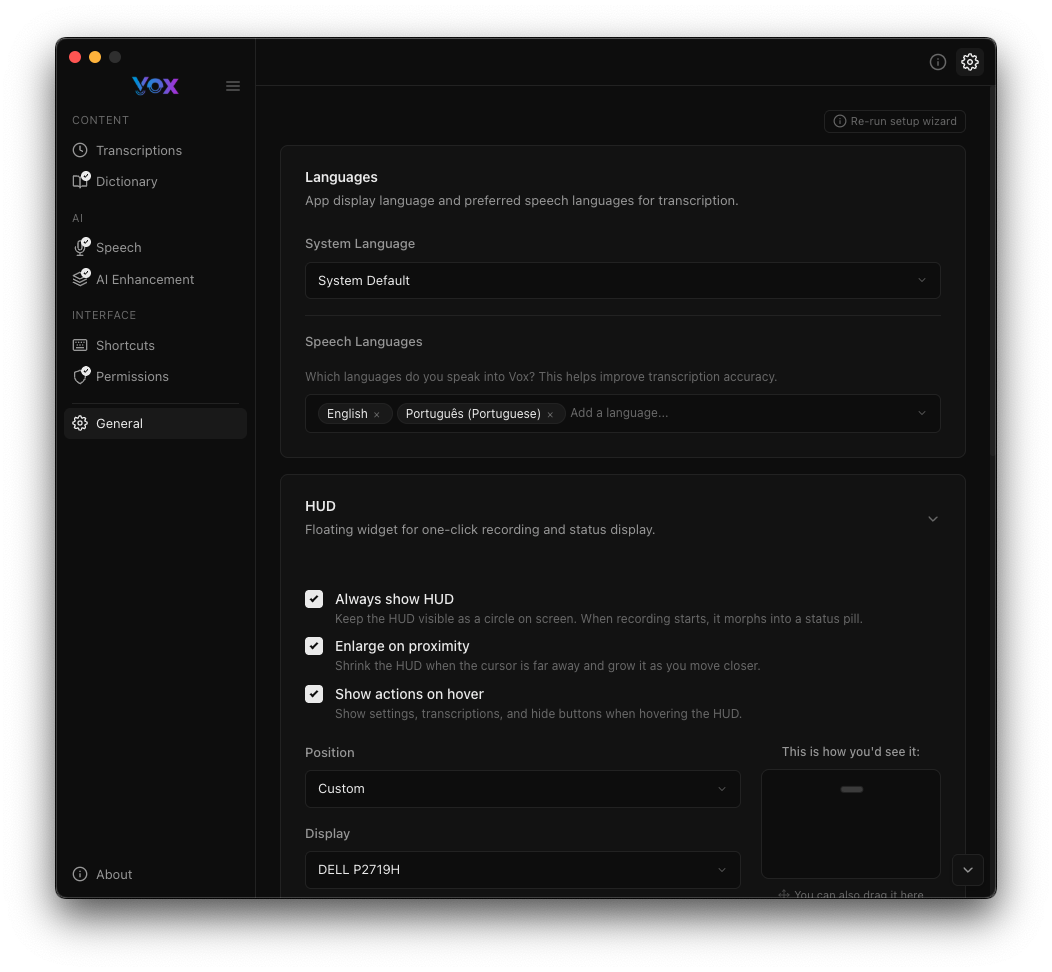
Languages
System Language
Choose the language for Vox's user interface:
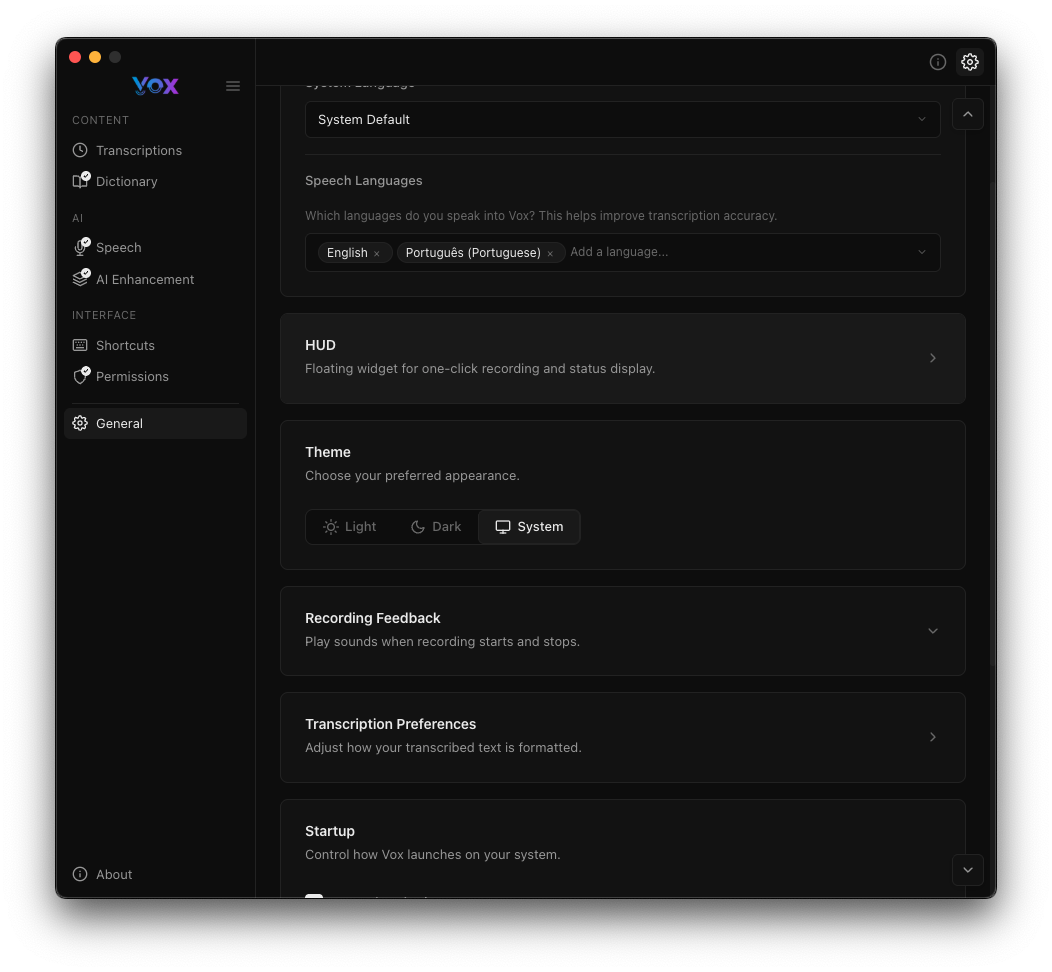
Available languages:
- English
- Português (Portuguese)
- Español (Spanish)
- Français (French)
- Deutsch (German)
- Italiano (Italian)
Speech Languages
Select which languages Vox should recognize during transcription:
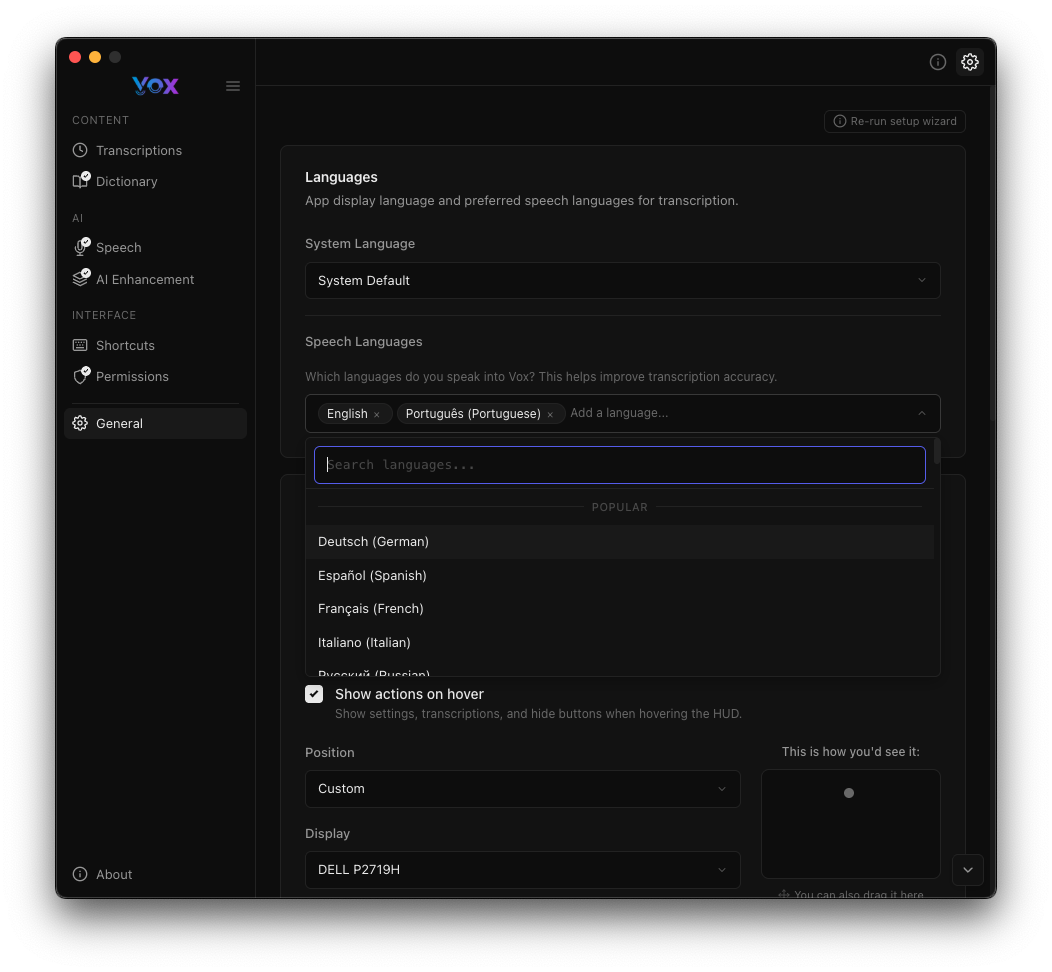
You can enable multiple languages. Vox will help improve transcription accuracy for your selected languages.
Multi-Language Support
Adding multiple languages helps Vox handle code-switching and technical terms from different languages.
HUD Settings
The HUD (Heads-Up Display) shows recording status and provides quick actions:
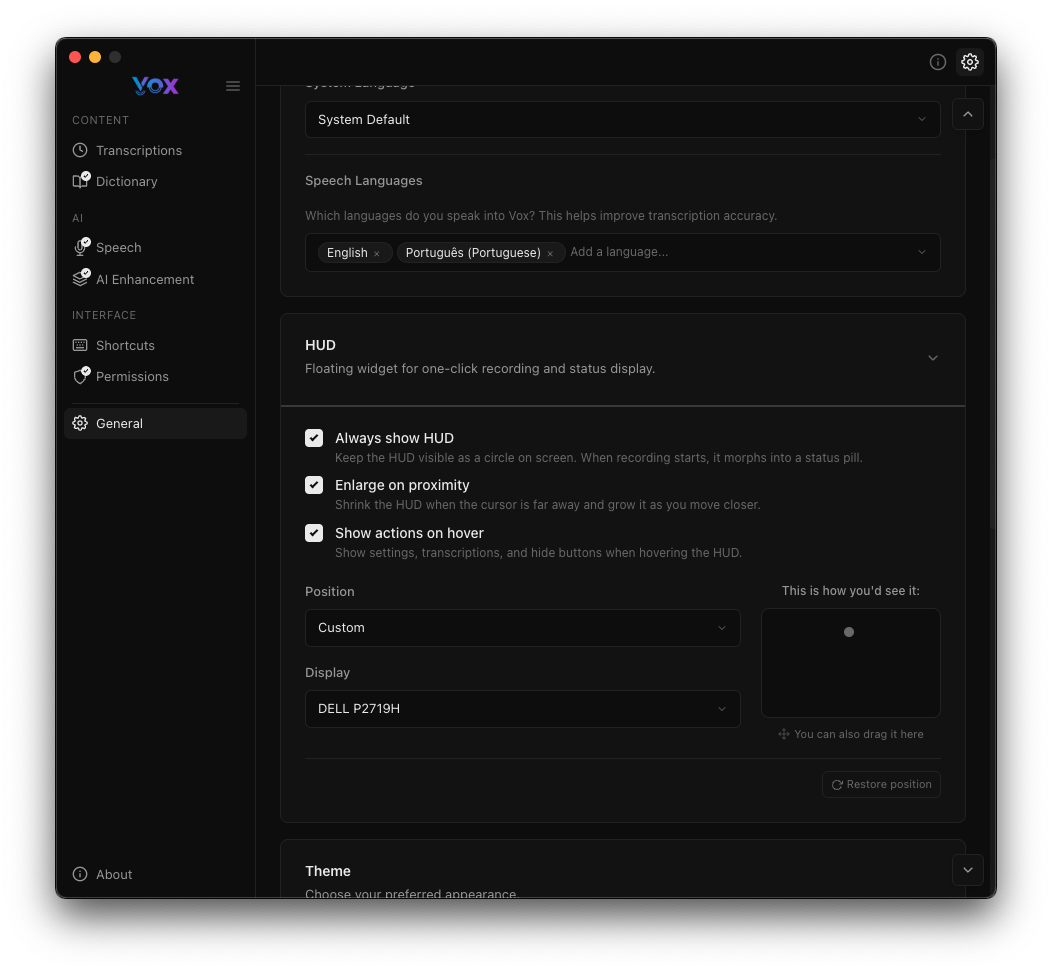
HUD Options
- Always show HUD: Keep the HUD visible even when not recording
- Enlarge on proximity: Make the HUD larger when your cursor is nearby
- Show actions on hover: Display action buttons when hovering over the HUD
Position
Choose where the HUD appears on your screen:
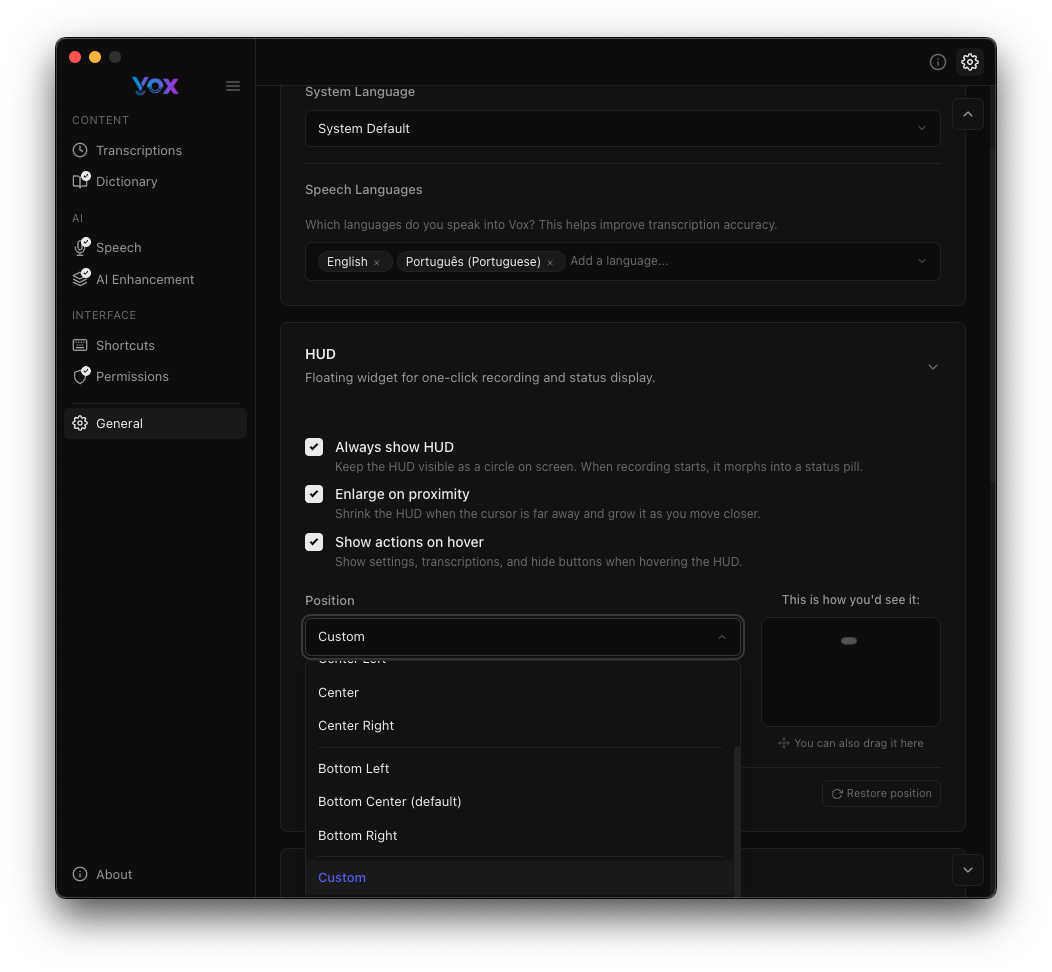
Available positions:
- Custom (drag to any location)
- Center
- Center Right
- Bottom Left
- Bottom Center (default)
- Bottom Right
You can also specify which display to use if you have multiple monitors.
Theme
Choose your preferred appearance:
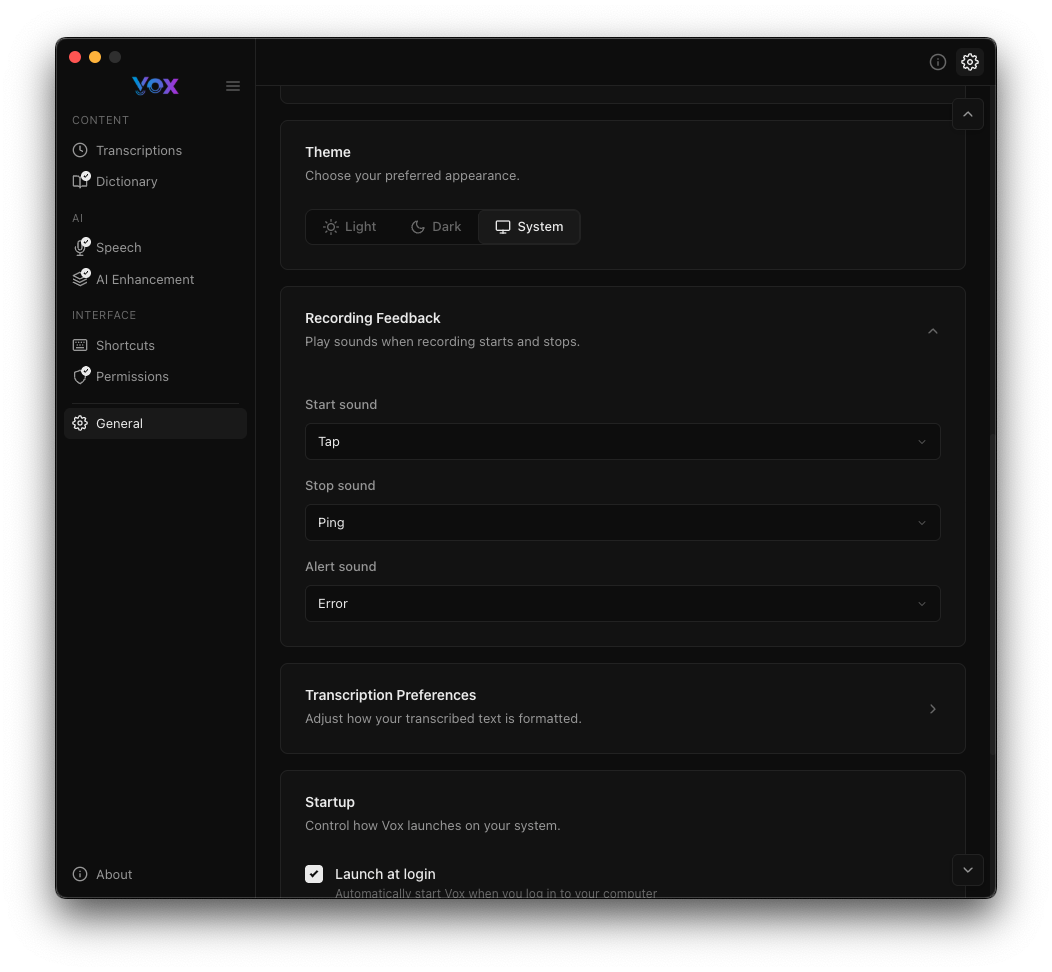
- Light: Light color scheme
- Dark: Dark color scheme (default)
- System: Follow system appearance
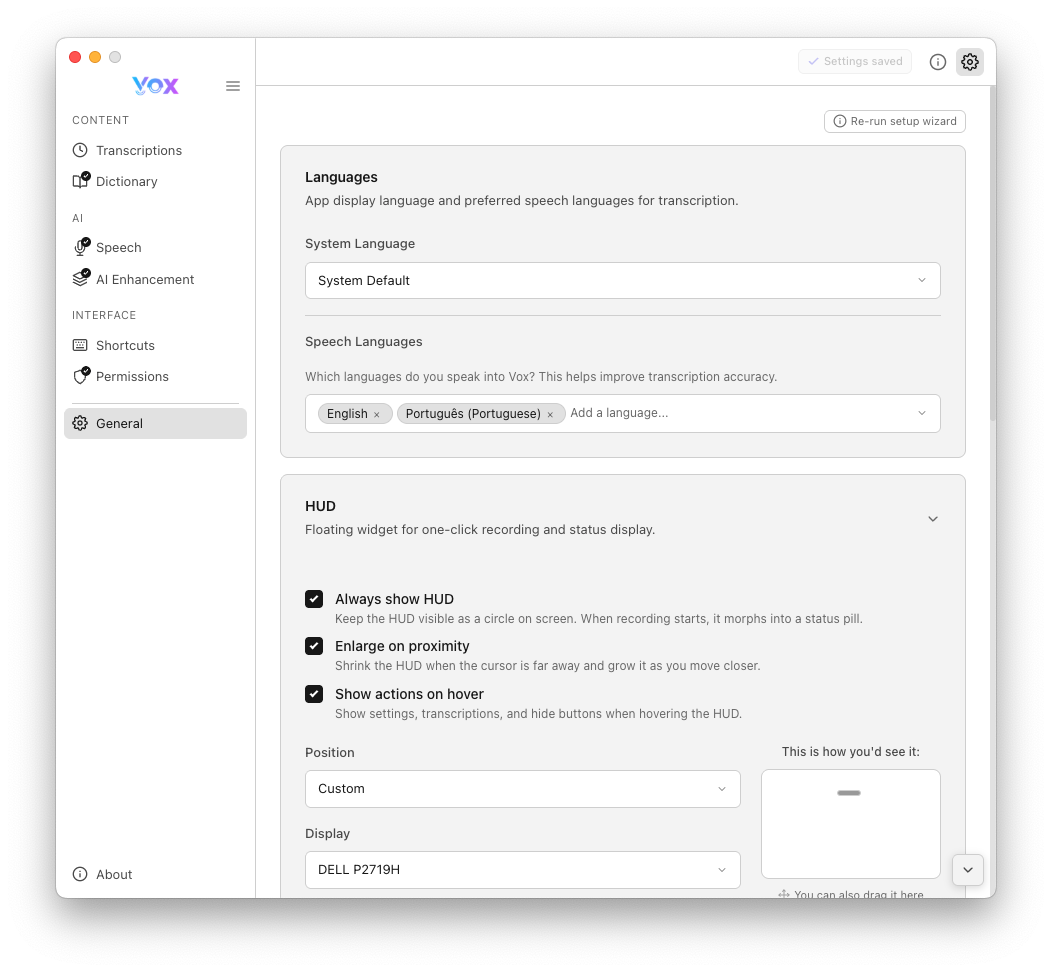
Light Theme Preview
Recording Feedback
Configure audio feedback when recording starts and stops:
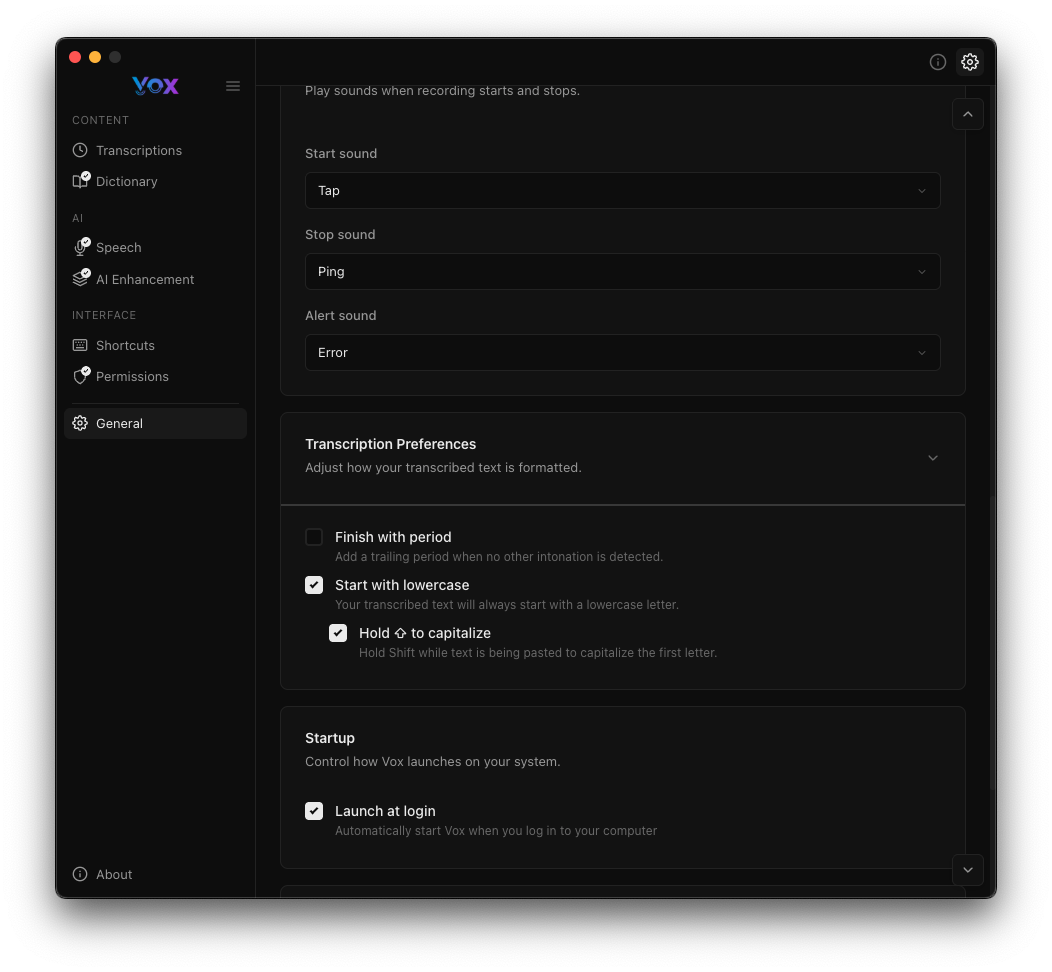
- Start sound: Play audio when recording begins (default: "Tap")
- Stop sound: Play audio when recording ends (default: "Ping")
- Alert sound: Play audio on errors (default: "Error")
Transcription Preferences
Adjust how your transcribed text is formatted:
- Finish with period: Automatically add a period at the end of transcriptions
- Start with lowercase: Begin transcriptions with a lowercase letter
- Hold Shift to capitalize: Press Shift while recording to capitalize the first letter
Startup
Control Vox's launch behavior:
- Launch at login: Automatically start Vox when you log in to your computer
Analytics
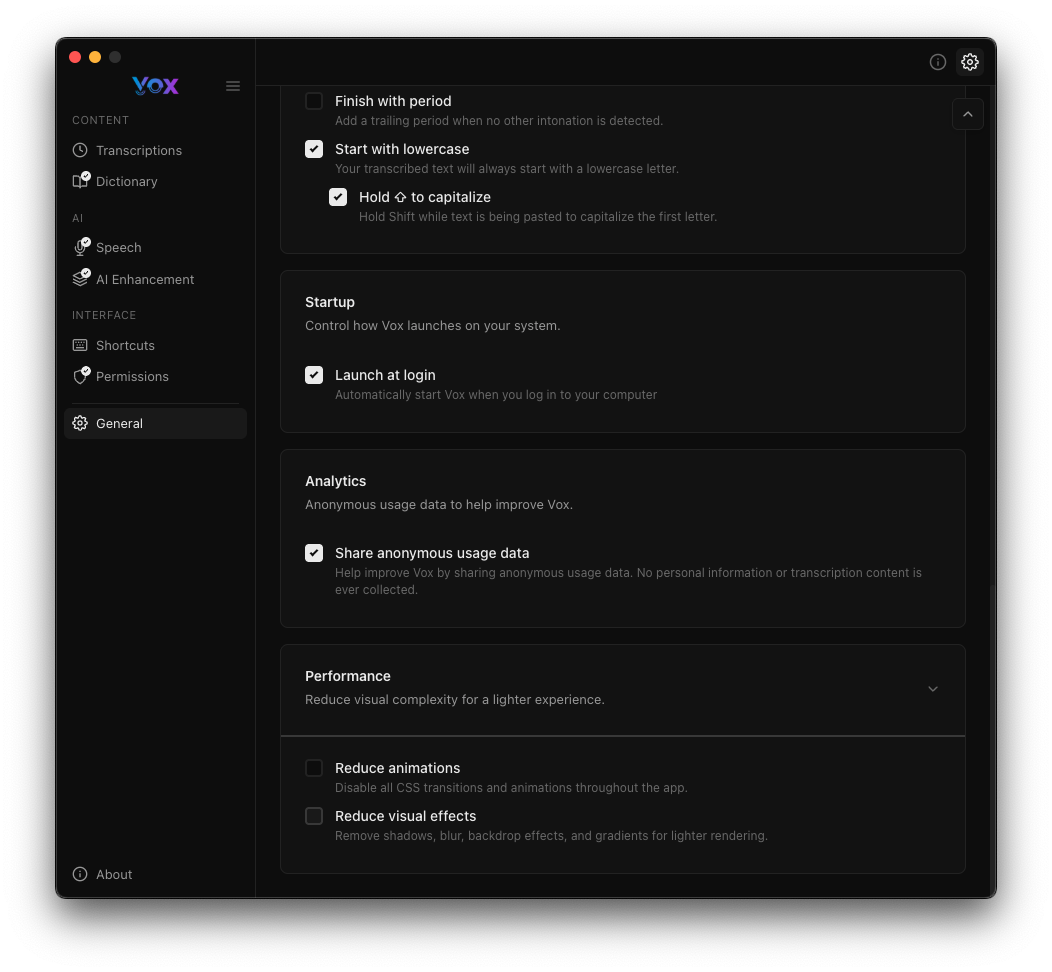
- Share anonymous usage data: Help improve Vox by sharing anonymous usage statistics. No personal information or transcription content is collected.
Performance
Optimize Vox for your needs:
- Reduce animations: Disable animations throughout the app for better performance
- Reduce visual effects: Reduce visual effects like blurring and shadows for faster rendering
Audio Retention
Configure how long Vox keeps audio recordings:
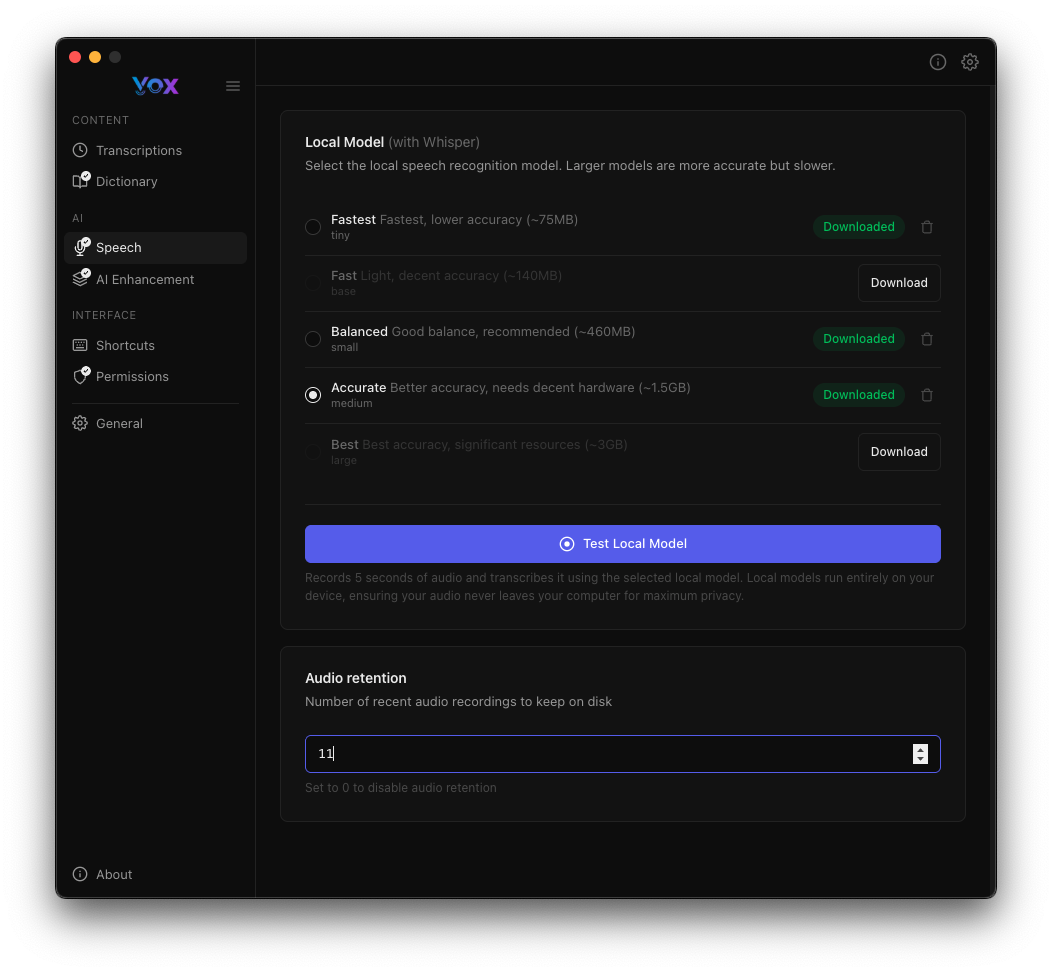
Set the number of recent audio recordings to keep on disk (default: 10). Audio is used for reviewing transcriptions and improving your dictionary.
Privacy Note
Audio files are stored locally and used only for your reference. Increase retention if you want to review older recordings, or decrease to save disk space.
System Tray
Vox runs in your menu bar for quick access:

When recording, the icon changes to show recording status:

Click the tray icon to:
- Open Settings
- View recent transcriptions
- Quit Vox
Tray Menu

Saving Settings
Settings are automatically saved. You'll see a confirmation when changes are persisted:

About
View version information and check for updates:
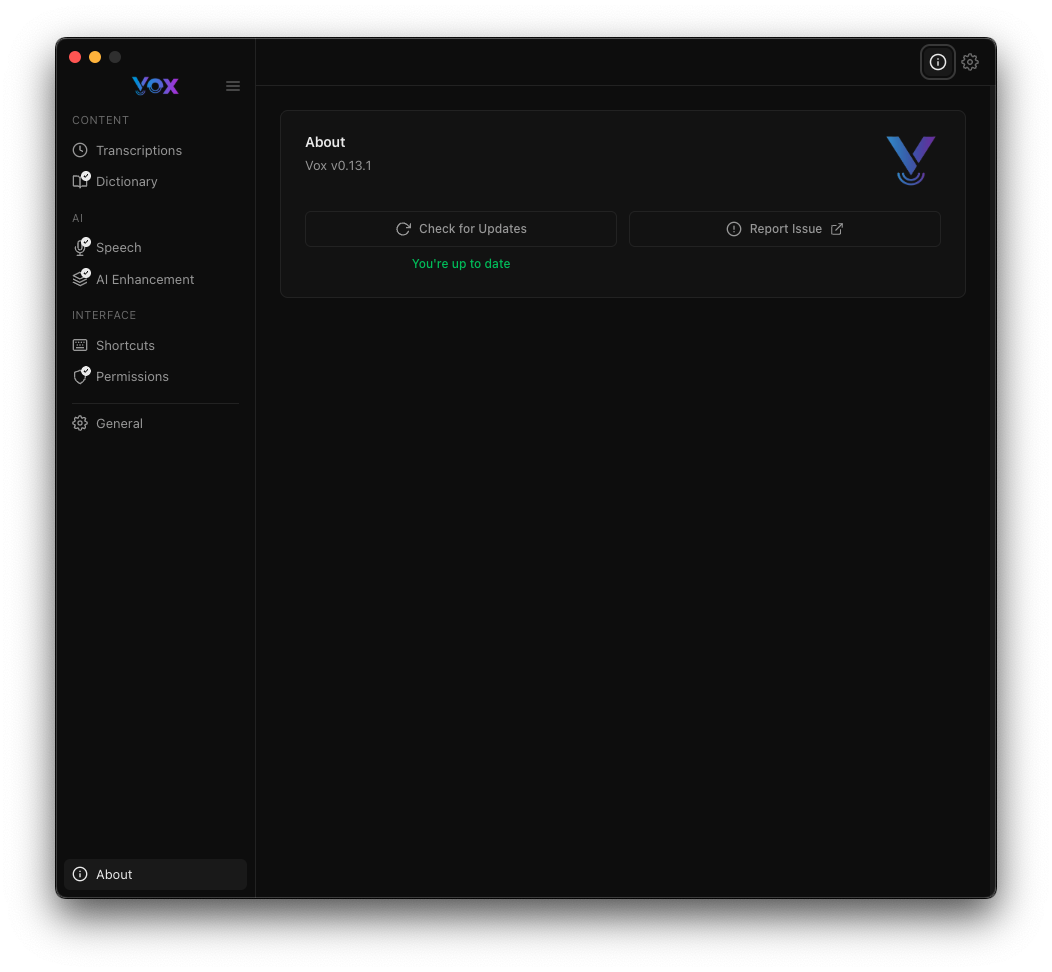
Click Check for Updates to see if a newer version is available, or Report Issue to open the GitHub issues page.
Next Steps
- Configure Speech Models for better accuracy
- Set up AI Enhancement for polished transcriptions
- Customize Keyboard Shortcuts
- Grant Required Permissions