
Keyboard Shortcuts
Vox provides customizable keyboard shortcuts for voice recording. Configure them to match your workflow and preferences.
Default Shortcuts
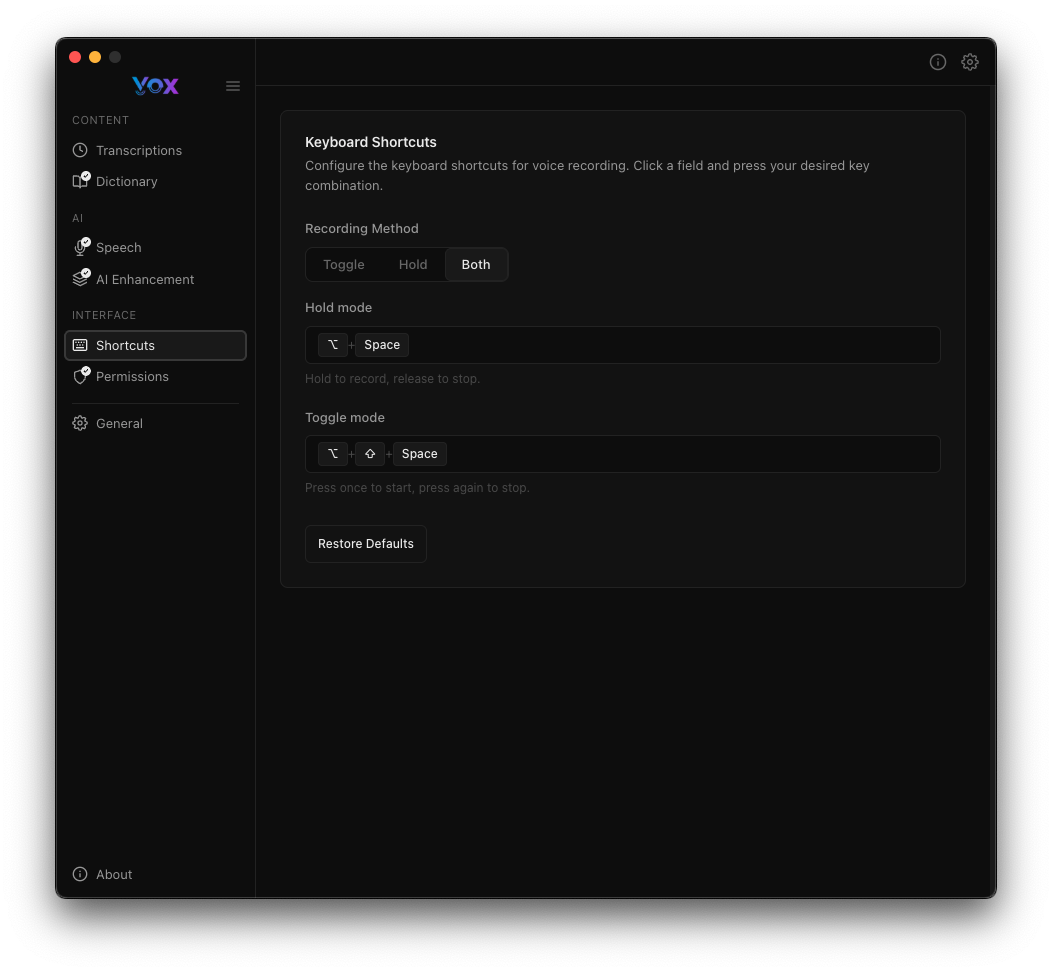
Access shortcut settings from Settings → Shortcuts.
Recording Methods
Vox supports two recording methods, each with its own customizable shortcut:
Hold Mode
Default: ⌘ + Space
Hold the key combination to record, release to stop and transcribe.
Best for:
- Quick, short transcriptions
- Natural start/stop control
- Single-handed operation
Toggle Mode
Default: ⌘ + ⌥ + Space
Press once to start recording, press again to stop and transcribe.
Best for:
- Longer dictation sessions
- When you need both hands free while speaking
- Continuous recording without holding a key
Choose Your Method
Use Hold mode for quick voice commands and short notes. Use Toggle mode when transcribing longer content where holding a key would be uncomfortable.
Customizing Shortcuts
Future Customization
Vox allows you to customize these shortcuts to match your workflow. Additional shortcut customization options may be added in future updates.
How to Change a Shortcut
- Navigate to Settings → Shortcuts
- Click on the shortcut field you want to change (Hold mode or Toggle mode)
- Press your desired key combination
- The new shortcut is saved automatically

Modifier Keys
You can use any combination of modifier keys:
⌘Command⌥Option (Alt)⌃Control⇧Shift
Combined with any letter, number, or special key.
Examples
Common configurations:
⌘ + ⌃ + Space- Command + Control + Space⌃ + R- Control + R⌥ + V- Option + V⌘ + ⇧ + D- Command + Shift + D
Shortcut Conflicts
Avoid shortcuts already used by your operating system or other applications. If a shortcut doesn't work, check your system's keyboard shortcut settings for conflicts.
Restoring Defaults
If you want to return to the default shortcuts:
- Navigate to Settings → Shortcuts
- Click Restore Defaults
- Your shortcuts will be reset to:
- Hold mode:
⌘ + Space - Toggle mode:
⌘ + ⌥ + Space
- Hold mode:
Common Shortcut Conflicts
macOS: Spotlight Search
macOS uses ⌘ + Space for Spotlight by default. If you want to use this for Vox:
Option 1: Change Spotlight shortcut
- Open System Preferences → Keyboard → Shortcuts
- Select "Spotlight" from the left sidebar
- Change "Show Spotlight search" to a different shortcut
Option 2: Use a different Vox shortcut
- Choose an alternative like
⌃ + Spaceor⌘ + ⌥ + Space
Windows: Common Conflicts
Windows uses Win + H for voice typing and Ctrl + Space for input method switching. If your Vox shortcut conflicts:
- Choose a different Vox shortcut
- Or disable the conflicting Windows shortcut in Settings → Keyboard
Alfred, Raycast, or Other Launchers
Many launcher apps use similar shortcuts. To avoid conflicts:
- Check your launcher's shortcut settings
- Either change the launcher's shortcut or Vox's shortcut
- Ensure no two shortcuts overlap
International Keyboards
Some keyboard layouts use modifier keys differently:
- Test your shortcuts after setting them
- Consider using less common combinations
- Avoid shortcuts that conflict with input method switching
Recording Behavior
Hold Mode Behavior
- Press and hold your shortcut
- HUD appears showing recording status
- Speak your message
- Release the key
- Transcription processes and pastes automatically
Visual Feedback
The HUD shows real-time recording status. The tray icon also changes to indicate recording.
Toggle Mode Behavior
- Press your shortcut once
- HUD appears showing recording status
- Speak your message (hands-free)
- Press the shortcut again to stop
- Transcription processes and pastes automatically
Recording Feedback Sounds
Vox plays audio feedback when recording starts and stops:
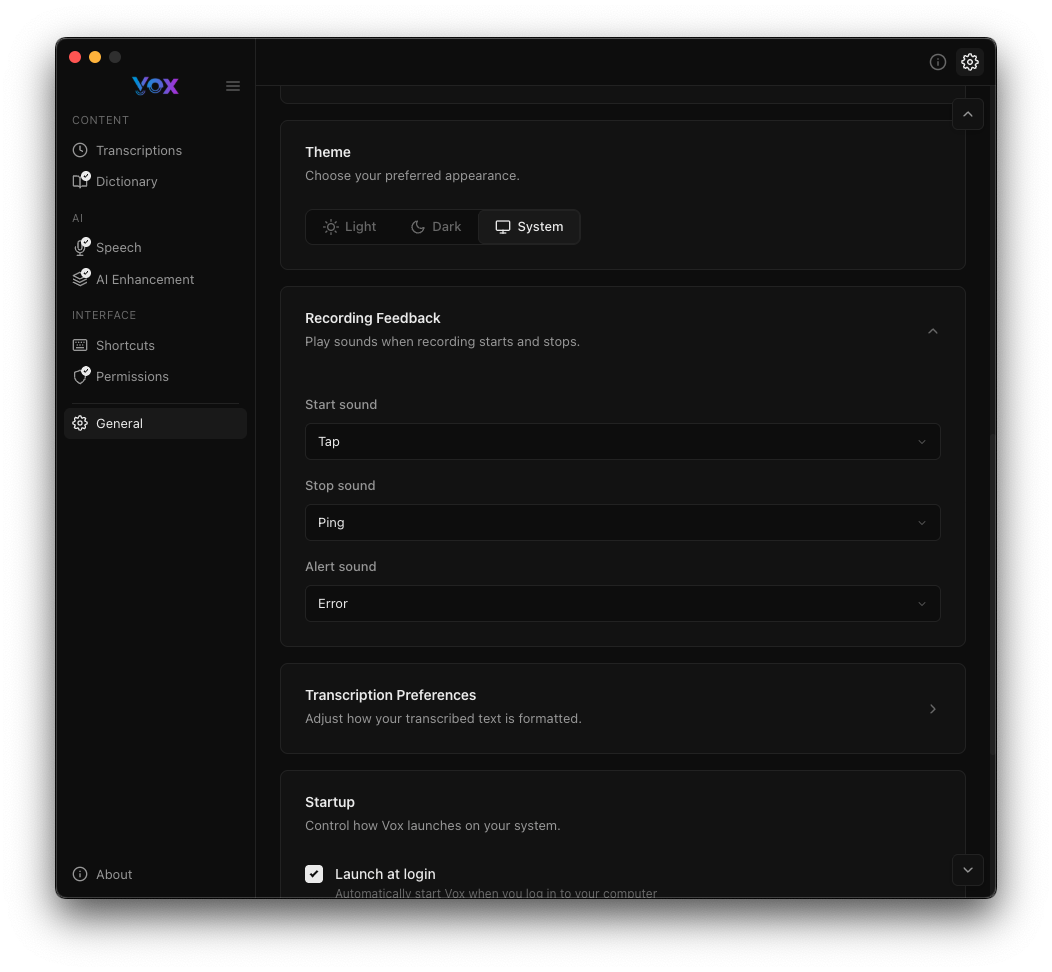
Configure these sounds in Settings → General → Recording Feedback:
- Start sound: "Tap" (when recording begins)
- Stop sound: "Ping" (when recording ends)
- Alert sound: "Error" (on errors or issues)
See Recording Feedback for more details.
Accessibility Features
Single-Handed Operation
Hold mode is designed for single-handed use:
- Use your thumb to hold the shortcut
- Speak naturally
- Release when done
Hands-Free Recording
Toggle mode allows completely hands-free recording:
- Press once to start
- Speak as long as needed
- Press again when finished
Custom Shortcuts for Accessibility
If you have mobility limitations, consider:
- Using large, easy-to-press key combinations
- Placing shortcuts on keys you can easily reach
- Using toggle mode to avoid holding keys
- Combining with voice control or switch control features
Tips and Best Practices
Start Recording First, Then Speak
To capture your full message:
- Press your recording shortcut
- Wait for the start sound
- Begin speaking
- This prevents cutting off the beginning of your transcription
Use Toggle Mode for Long Dictation
When transcribing documents or lengthy content:
- Use Toggle mode to avoid hand fatigue
- Take natural pauses between sentences
- Press the shortcut again when finished
Test Before Important Work
Before transcribing critical content:
- Test your shortcut with a simple phrase
- Verify the transcription is accurate
- Check that text pastes correctly
- Then proceed with your actual transcription
Shortcut Placement
Choose shortcuts that:
- Are easy to remember
- Don't conflict with apps you use frequently
- Are comfortable to press in your normal working position
- Work across all applications you use
Troubleshooting
Shortcut Not Working
- Check for conflicts: Look in System Preferences → Keyboard → Shortcuts
- Restart Vox: Quit completely and relaunch
- Try a different shortcut: Some combinations don't work on all keyboards
- Check permissions: Ensure Accessibility permission is granted
Recording Doesn't Stop (Toggle Mode)
If toggle mode doesn't stop recording:
- Press the shortcut again firmly
- Check the HUD for visual confirmation
- Ensure you're using the same shortcut to stop as you used to start
- Restart Vox if the issue persists
Recording Stops Immediately (Hold Mode)
If hold mode stops too quickly:
- Ensure you're holding the key, not just tapping it
- Check that key repeat is enabled in System Preferences → Keyboard
- Try toggle mode if hold mode is unreliable
- Test with a different shortcut combination
Shortcut Works Sometimes But Not Always
This usually indicates a conflict with another application:
- Identify which app causes the conflict
- Check that app's shortcuts
- Change either Vox's shortcut or the other app's shortcut
- Apps like IDEs, terminal emulators, and browsers often have many shortcuts
Advanced Usage
Context-Specific Shortcuts
While Vox doesn't support per-app shortcuts natively, you can:
- Use tools like Keyboard Maestro or BetterTouchTool to create context-specific shortcuts
- Set different shortcuts for different work modes
- Use system-wide shortcuts that don't conflict with your primary applications
Multiple Recording Modes
Some users configure workflows using both modes:
- Hold mode for quick inline comments and short notes
- Toggle mode for longer-form dictation and documentation
Integration with Other Tools
Vox shortcuts work well with:
- Text editors and IDEs
- Note-taking apps like Obsidian, Notion, or Apple Notes
- Communication tools like Slack, Discord, or email
- Code documentation and commenting workflows
Next Steps
- Configure the HUD to show recording status
- Set up AI Enhancement for better transcription quality
- Add custom words to improve accuracy
- Grant required permissions if shortcuts aren't working