
AI Enhancement
Optional Feature - You Can Skip This!
This step is completely optional. Vox works perfectly without AI Enhancement - your transcriptions will be accurate as-is. Only configure this if you want to polish your transcriptions automatically (fix grammar, remove filler words like "um" or "uh").
If you're not sure what this is or don't want to set it up right now, feel free to skip to the next section!
AI Enhancement uses AI (like ChatGPT or Claude) to automatically clean up your transcriptions, making them more polished and professional.
What Does AI Enhancement Do?
In simple terms: It takes your transcription (which is already accurate) and makes it sound more professional.
Example:
- Before AI: "Um, so basically, like, we need to, uh, schedule a meeting for, you know, next Tuesday"
- After AI: "We need to schedule a meeting for next Tuesday"
Key Benefits
- Fixes grammar: Corrects mistakes automatically
- Removes filler words: Gets rid of "um", "uh", "like", etc.
- Makes it cleaner: More professional and easier to read
- Keeps your meaning: Your original message stays the same
Do You Need This?
You might want AI Enhancement if:
- You use Vox for professional documents or emails
- You want your transcriptions to look polished without editing
- You're comfortable using AI services (like ChatGPT)
You DON'T need AI Enhancement if:
- You're just taking quick notes for yourself
- You prefer complete privacy (AI Enhancement sends text to external services)
- You don't mind editing transcriptions manually
- You're not sure what an "API key" is
Privacy Note
Your audio never leaves your device. Only the text transcription is sent to the AI service you choose. If you want complete privacy, just leave AI Enhancement disabled.
How to Set It Up
Requirements
To use AI Enhancement, you need:
- An account with an AI service (like OpenAI, Anthropic, AWS, etc.)
- An API key (think of it like a password for the AI service)
- A few dollars for AI costs (usually $0.01-0.05 per transcription)
Coming Soon: We're working on a built-in paid option so you won't need to set this up yourself.
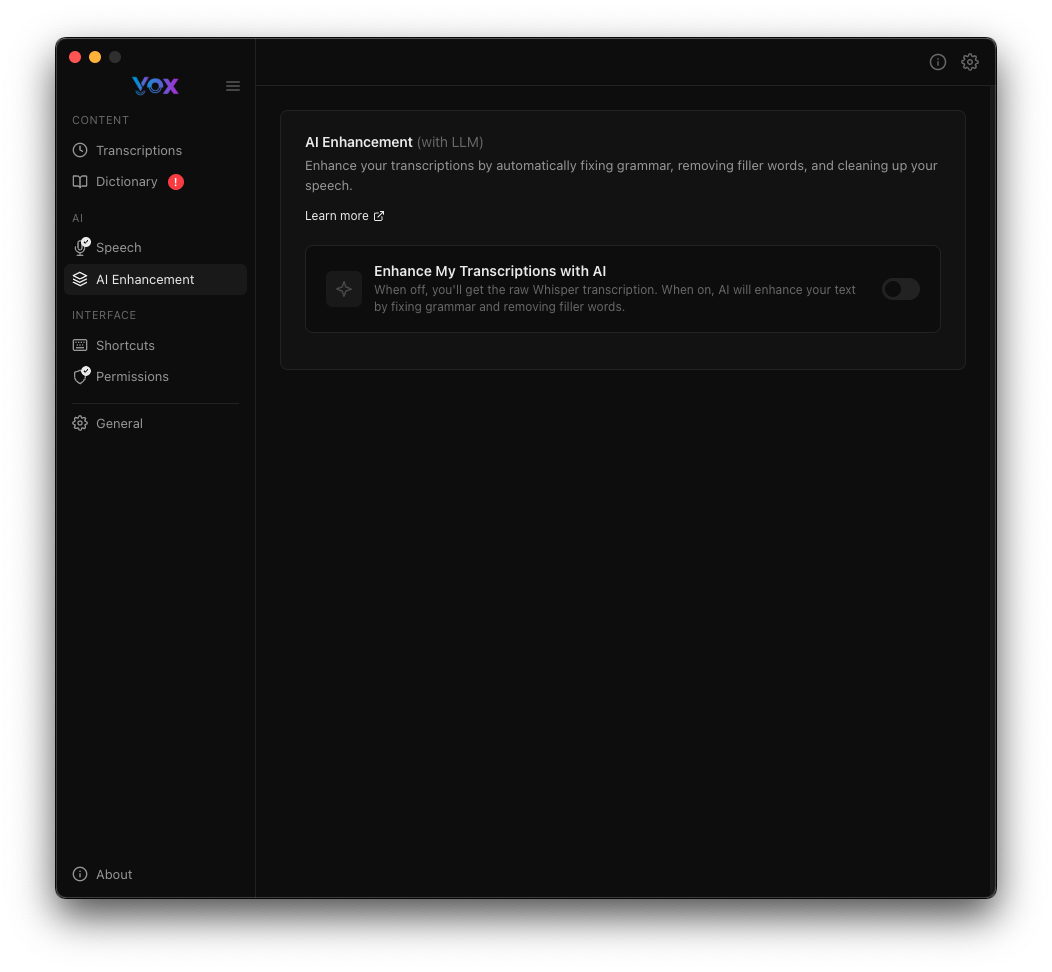
Step 1: Open AI Enhancement Settings
- Open Vox settings
- Click on AI Enhancement in the sidebar
- Toggle Enhance My Transcriptions with AI to ON
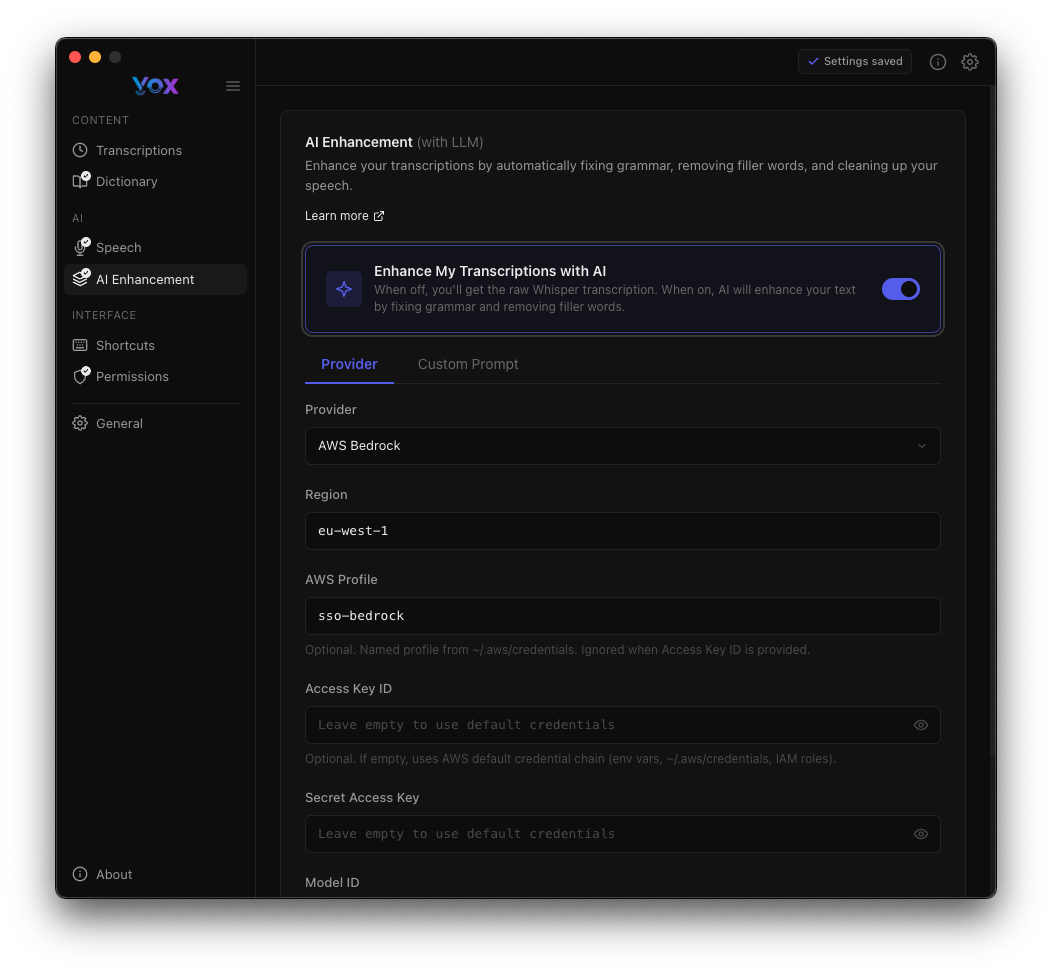
Step 2: Choose Your AI Provider
Select an AI service from the dropdown. Popular options:
- OpenAI (ChatGPT) - Most popular, easy to use
- Anthropic (Claude) - Good quality, privacy-focused
- AWS Bedrock - For advanced users
- Ollama - Run AI locally (free, but requires setup)
Step 3: Add Your API Key
- Get an API key from your chosen provider (see provider sections below)
- Paste it into the API Key field
- Click Test Connection to make sure it works
First Time?
If you've never used AI APIs before, we recommend starting with OpenAI (ChatGPT). They have clear pricing ($0.002 per request) and good documentation.
Supported Providers
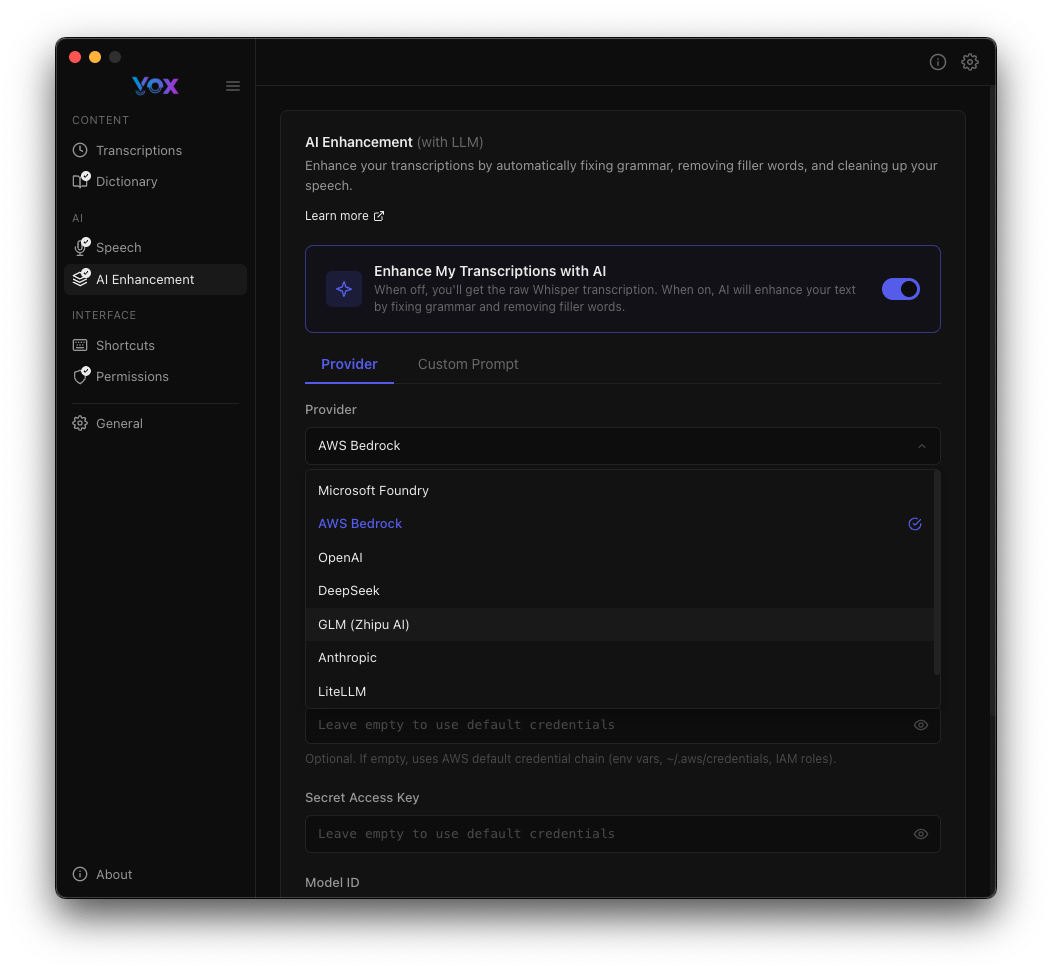
Vox supports multiple AI providers. Click the Provider dropdown to select:
AWS Bedrock
Best for: Production use, enterprise environments, variety of models
Configuration:
Region
- Select your AWS region (e.g.,
eu-west-1) - Choose a region close to you for lower latency
AWS Profile
- Enter your AWS profile name (e.g.,
sso-bedrock) - Uses AWS CLI credentials configured on your system
Access Key ID
- Optional: Enter your AWS access key
- Required if not using AWS CLI profiles
- Format:
AKIA...(20 characters)
Secret Access Key
- Optional: Enter your secret access key
- Required if not using AWS CLI profiles
- Stored securely in macOS Keychain / Windows Credential Manager
Model ID
- Specify the Bedrock model to use
- Example:
global.anthropic.claude-haiku-4-5-20251101-v1:0 - See AWS Bedrock Models
AWS Setup
AWS Bedrock requires:
- An AWS account with Bedrock access
- IAM permissions for the selected model
- Either AWS CLI configured with SSO or access keys
DeepSeek
Best for: Cost-effective AI enhancement, good performance
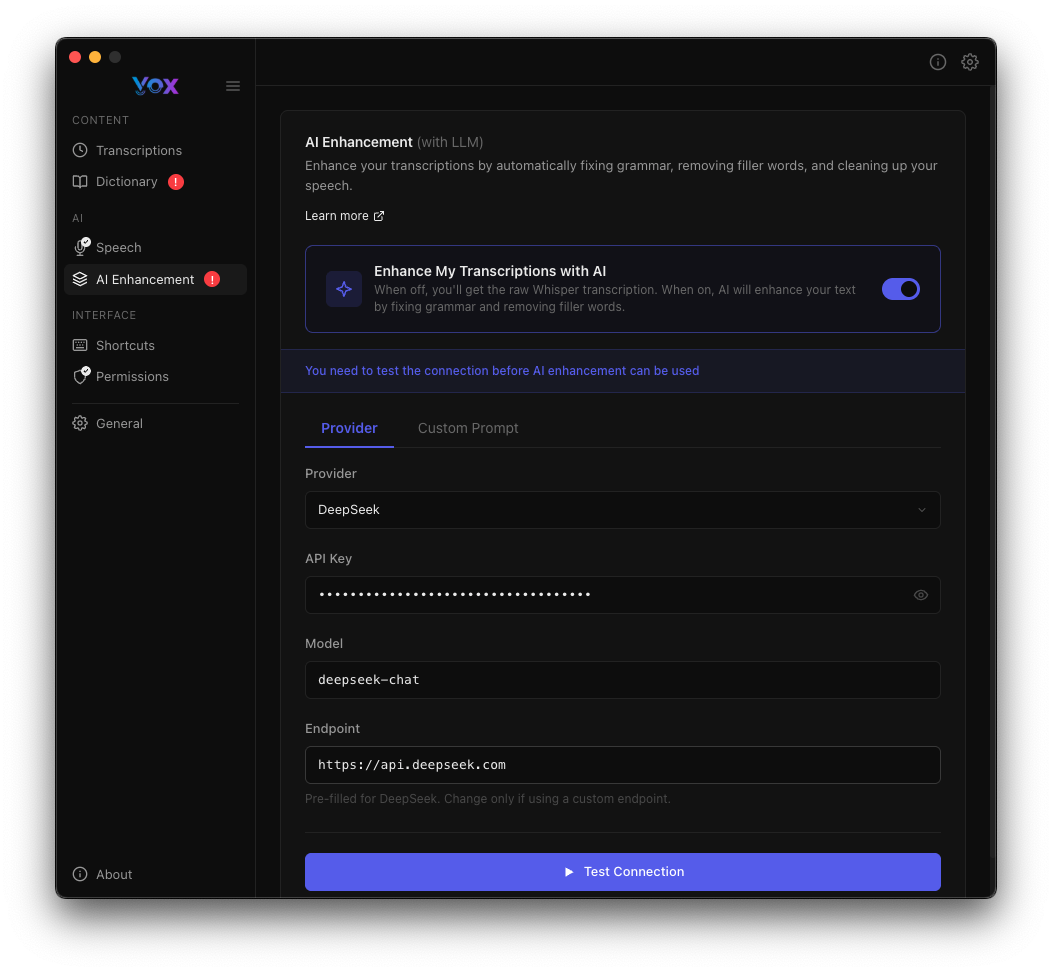
Configuration:
API Key
- Get an API key from DeepSeek
- Stored securely in macOS Keychain / Windows Credential Manager
Model
- Specify the model (e.g.,
deepseek-chat) - See DeepSeek API Documentation
Endpoint
- Default:
https://api.deepseek.com - Change only if using a custom endpoint
Microsoft Foundry
Best for: Azure users, enterprise integration
Configuration:
- Similar to AWS Bedrock
- Requires Azure subscription and Foundry access
- Uses Azure authentication
OpenAI
Best for: High-quality GPT models, simplest setup
Configuration:
- API Key: Get from OpenAI Platform
- Model:
gpt-4,gpt-4-turbo,gpt-3.5-turbo, etc. - Endpoint: Default
https://api.openai.com/v1
GLM (Zhipu AI)
Best for: Chinese language transcription, Asia-Pacific users
Configuration:
- API Key: Get from Zhipu AI
- Model:
glm-4,glm-4-air, etc.
Anthropic
Best for: Claude models with high reasoning ability
Configuration:
- API Key: Get from Anthropic Console
- Model:
claude-3-5-sonnet-20241022,claude-3-opus-20240229, etc.
LiteLLM
Best for: Advanced users, custom model routing, unified API
Configuration:
- Endpoint: Your LiteLLM server URL
- Supports routing to 100+ LLM providers
- See LiteLLM Documentation
Testing Your Connection
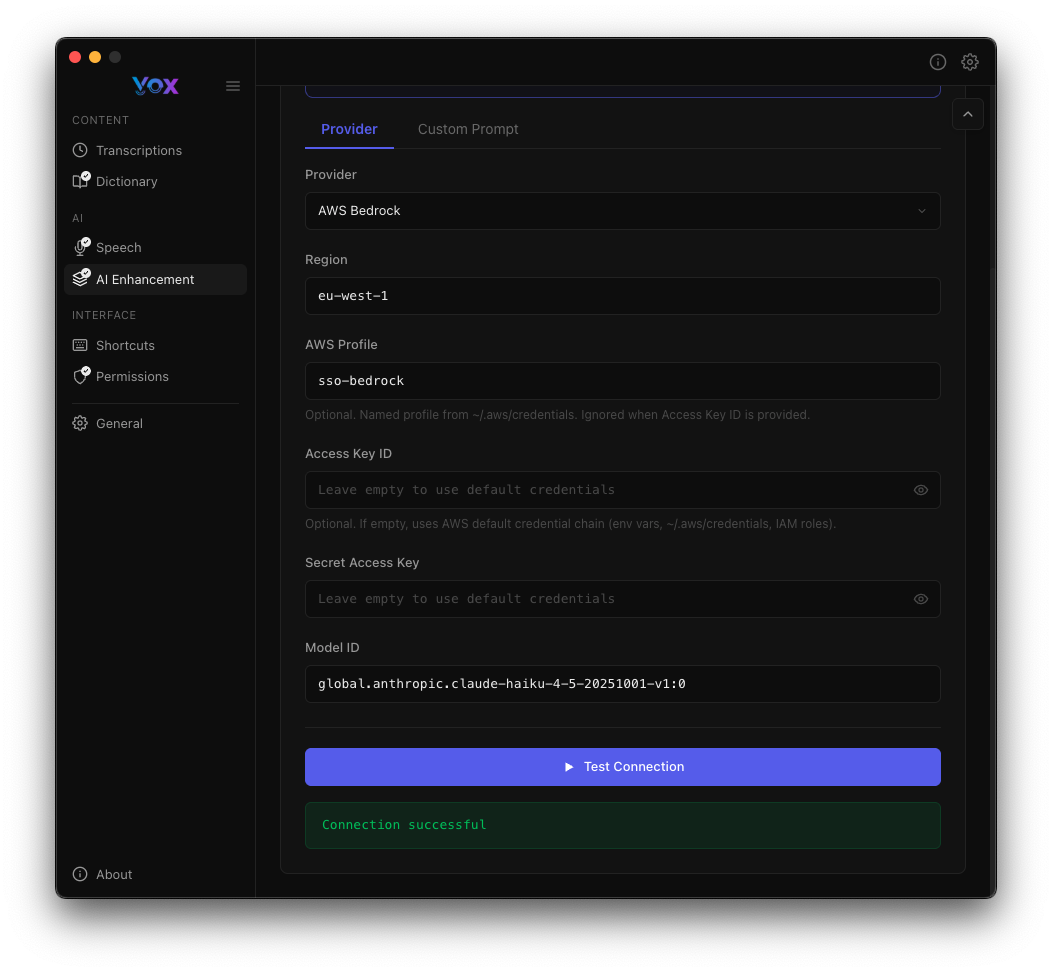
After configuring your provider:
- Click Test Connection
- Wait for the test to complete
- Look for "Connection successful!" message
If the test fails:
- Verify your API keys/credentials are correct
- Check your internet connection
- Ensure your account has access to the specified model
- Review error messages for specific issues
Keychain Access
You may need to grant Keychain permission to store API keys securely.
Custom Prompts
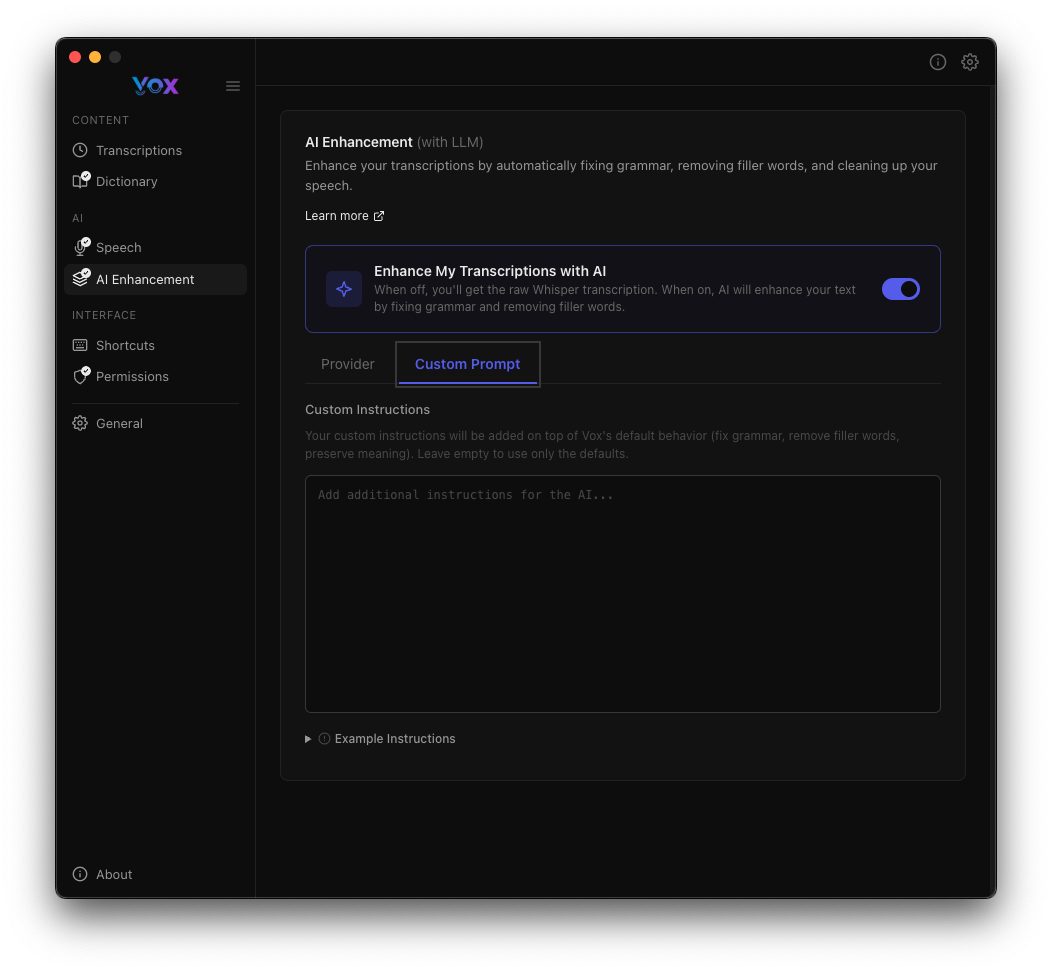
Customize how AI enhances your transcriptions:
Using Custom Prompts
- Click the Custom Prompt tab
- Enter your custom instructions
- Settings save automatically
Custom Prompt Example
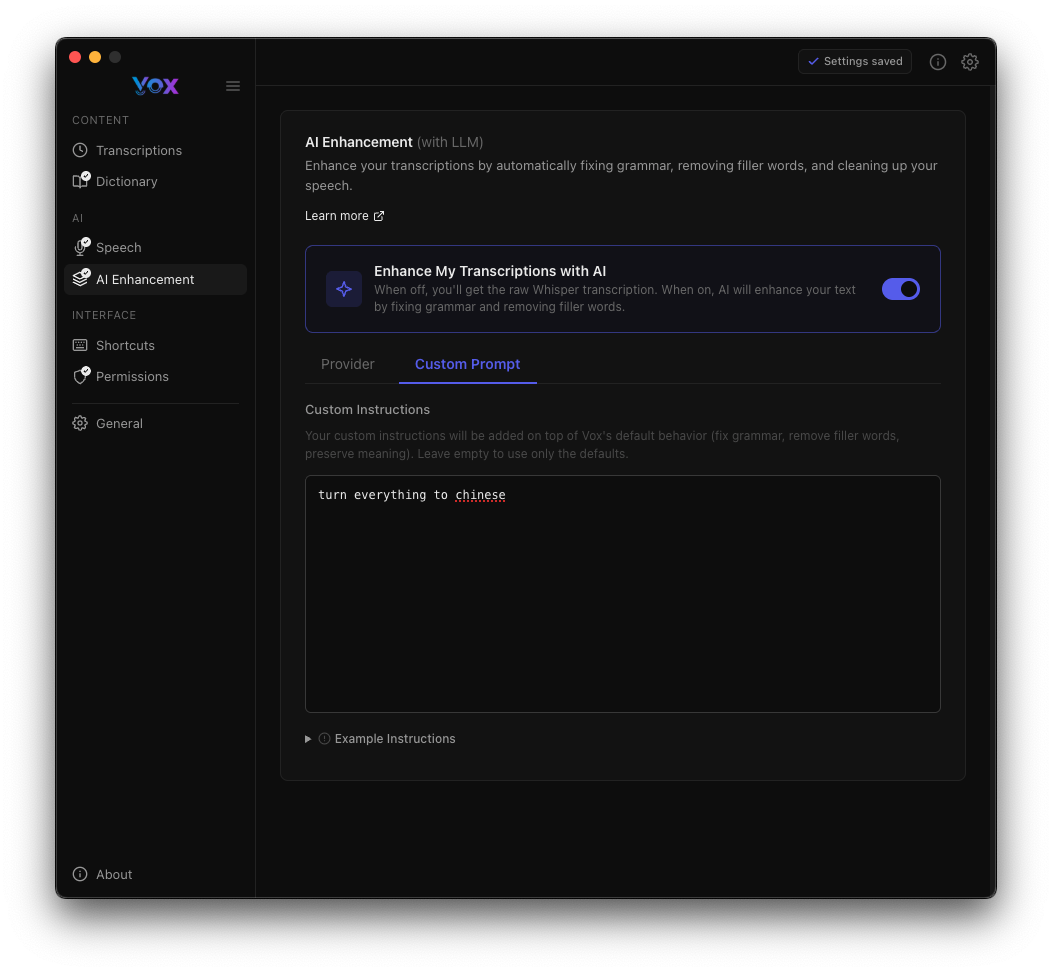
Example prompt:
turn everything to chineseThis will translate all transcriptions to Chinese.
Default Prompt
If you don't specify a custom prompt, Vox uses a default instruction to:
- Fix grammar and spelling
- Remove filler words (um, uh, like, etc.)
- Preserve technical terms and names
- Maintain the original meaning
Prompt Tips
Good prompts:
- "Fix grammar but keep technical jargon"
- "Remove filler words and format as bullet points"
- "Translate to Spanish and fix grammar"
- "Make more formal and professional"
Avoid:
- Extremely long prompts (may hit token limits)
- Prompts that change meaning significantly
- Prompts that add information not in the transcription
Experiment
Test different prompts with the same transcription to find what works best for your use case.
Example Instructions
Example custom instructions shown in the interface:
Click Example Instructions to see sample prompts:
- "Add additional instructions on top of Vox's default behavior like grammar, remove filler words, phrases of hesitation, I avoid words to use with the fillwords"
- Provides guidance on how to structure your custom instructions
Provider-Specific Guides
AWS Bedrock Setup
Prerequisites:
- AWS account with Bedrock access
- Model access enabled in AWS Console
- IAM permissions configured
Using AWS CLI Profile (Recommended):
# Configure AWS CLI with SSO
aws configure sso

# Test your profile
aws bedrock list-foundation-models --profile sso-bedrock
In Vox:
- Select AWS Bedrock provider
- Enter profile name (e.g.,
sso-bedrock) - Select region
- Enter model ID
- Click Test Connection
Using Access Keys:
- Create access keys in AWS IAM
- Enter Access Key ID and Secret Access Key in Vox
- Select region and model
- Click Test Connection
Security
Store access keys securely. AWS CLI profiles with SSO are more secure than static access keys.
DeepSeek Setup
Prerequisites:
- Account at platform.deepseek.com
- API key generated
Setup:
- Sign up for DeepSeek
- Generate an API key
- In Vox, select DeepSeek provider
- Enter your API key
- Use model
deepseek-chat - Click Test Connection
Cost: DeepSeek is cost-effective compared to other providers.
OpenAI Setup
Prerequisites:
- OpenAI account
- API key with credits
Setup:
- Get API key from platform.openai.com/api-keys
- In Vox, select OpenAI provider
- Enter your API key
- Choose model (e.g.,
gpt-4-turbo,gpt-3.5-turbo) - Click Test Connection
Cost: OpenAI charges per token. GPT-4 is more expensive but higher quality than GPT-3.5.
Cost Considerations
Pricing Overview
AI Enhancement costs vary by provider:
| Provider | Cost per 1M tokens | Notes |
|---|---|---|
| DeepSeek | ~$0.14 | Most cost-effective |
| OpenAI GPT-3.5 | ~$0.50 | Good value |
| OpenAI GPT-4 | ~$10-30 | High quality, expensive |
| AWS Bedrock | ~$0.25-15 | Varies by model |
| Anthropic Claude | ~$3-15 | High quality |
Estimating Costs
Average transcription: 50-100 tokens Cost per transcription: $0.001-0.01 (depending on provider)
Example usage:
- 100 transcriptions/day with DeepSeek: ~$0.50/month
- 100 transcriptions/day with GPT-4: ~$30/month
Save Money
- Use smaller, cheaper models for simple transcriptions
- Use GPT-4 or Claude only when you need highest quality
- DeepSeek offers the best price-to-performance ratio
Future Pricing
Built-in AI Coming Soon
Currently, Vox uses your own API keys for AI enhancement. In the future, we may offer a built-in paid AI model option for convenience.
This would eliminate the need to manage API keys and potentially offer:
- Simplified setup (no API keys needed)
- Predictable monthly pricing
- Integrated billing
- Optimized models for transcription
Stay tuned for updates!
Best Practices
When to Use AI Enhancement
Use AI Enhancement for:
- Professional emails and documentation
- Meeting notes and summaries
- Content creation and writing
- Formal communications
Skip AI Enhancement for:
- Quick personal notes
- When complete privacy is required
- Simple, short transcriptions
- When speed is critical
Choosing a Provider
Choose AWS Bedrock if you:
- Already use AWS for other services
- Need enterprise-grade security
- Want access to multiple model providers
- Have existing AWS credits
Choose DeepSeek if you:
- Want the most cost-effective option
- Need good quality at low cost
- Transcribe frequently
Choose OpenAI if you:
- Want the simplest setup
- Need reliable, high-quality results
- Already have OpenAI credits
Choose Anthropic if you:
- Need advanced reasoning and accuracy
- Work with complex, technical content
- Want Claude's specific capabilities
Prompt Engineering Tips
- Be specific: "Remove filler words and fix grammar" is better than "improve"
- Test iterations: Try different prompts to find what works
- Combine instructions: "Fix grammar, remove fillers, and format as bullet points"
- Consider context: Adjust prompts for different use cases (email vs. code comments)
Troubleshooting
Connection Test Fails
AWS Bedrock:
- Verify IAM permissions include Bedrock model access
- Check region matches where model is available
- Test AWS CLI:
aws bedrock list-foundation-models --region <region> - Ensure model ID is correct
DeepSeek/OpenAI/Anthropic:
- Verify API key is valid
- Check your account has credits/active subscription
- Ensure endpoint URL is correct
- Test API key with curl:bash
curl https://api.deepseek.com/v1/models \
  -H "Authorization: Bearer YOUR_API_KEY"
AI Enhancement Takes Too Long
Solutions:
- Switch to a faster model (e.g., GPT-3.5 instead of GPT-4)
- Use a provider with lower latency
- Check your internet connection
- Reduce custom prompt complexity
Enhanced Text is Wrong
Solutions:
- Adjust your custom prompt to be more specific
- Try a different model (larger models are often more accurate)
- Use a simpler prompt or the default behavior
- Check that your base transcription is accurate first
API Key Stored Incorrectly
Solution:
- Navigate to Settings → AI Enhancement
- Re-enter your API key
- Grant Keychain access when prompted
- Click Test Connection to verify
High API Costs
Solutions:
- Switch to a cheaper provider (DeepSeek)
- Use AI Enhancement selectively (disable for quick notes)
- Monitor usage in your provider's dashboard
- Consider using smaller models
- Optimize your custom prompt to reduce output tokens
Security and Privacy
Data Privacy
What is sent to AI providers:
- Text transcription only (after local Whisper processing)
- Your custom prompt
- No audio, no personal info beyond the transcription text
What is NOT sent:
- Original audio recordings
- Other transcriptions (each request is independent)
- Personal information from Vox settings
Secure Storage
- API Keys: Stored encrypted in macOS Keychain / Windows Credential Manager
- Credentials: Never transmitted to Vox servers
- Transcriptions: Can be retained locally (see Audio Retention)
Provider Privacy Policies
Review privacy policies for your chosen provider:
Data Processing
When you enable AI Enhancement, your transcriptions are sent to third-party AI providers. If you work with sensitive information, consider:
- Using only local transcription (disable AI Enhancement)
- Choosing providers with strong privacy guarantees
- Using private deployments (AWS PrivateLink, Azure Private Link)
Advanced Configuration
Custom Endpoints
Some providers allow custom endpoints for:
- Private deployments
- On-premises installations
- Proxy servers
- Regional optimizations
Enter custom endpoints in the Endpoint field when configuring a provider.
LiteLLM for Advanced Routing
LiteLLM allows:
- Unified interface to 100+ LLM providers
- Automatic fallback and retry
- Load balancing across multiple providers
- Cost tracking and budgets
Setup:
- Deploy LiteLLM server: https://docs.litellm.ai
- Select LiteLLM provider in Vox
- Enter your LiteLLM server URL
- Configure routing in LiteLLM config
Environment Variables
If you use AWS CLI profiles or environment variables, Vox respects:
AWS_PROFILEAWS_REGIONAWS_ACCESS_KEY_IDAWS_SECRET_ACCESS_KEY
Next Steps
- Configure speech models for better base transcriptions
- Add custom words to improve accuracy
- Set up keyboard shortcuts for quick recording
- Adjust HUD settings for recording feedback